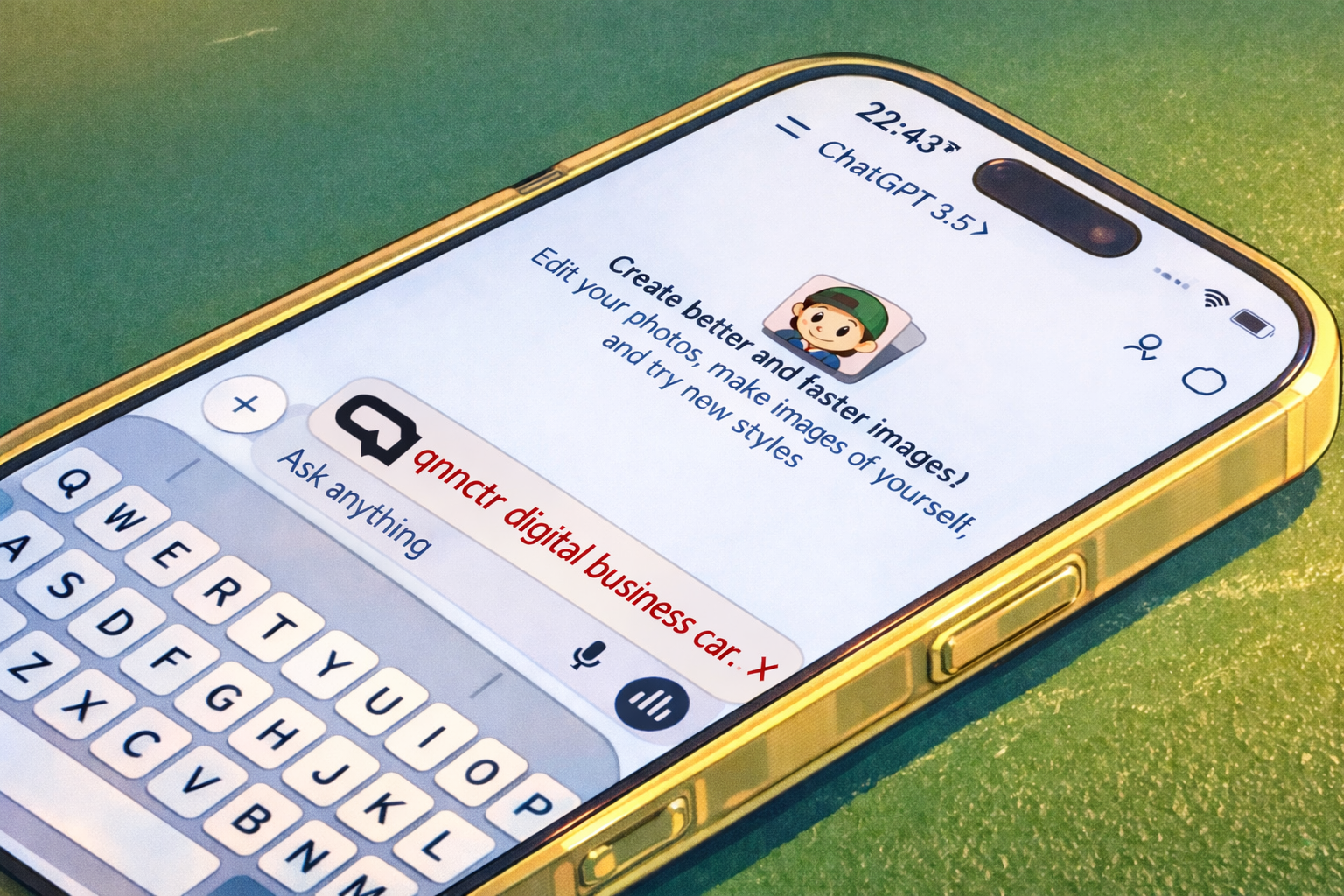
After creating a card via the GPT App, you’ll get a public_url — your “one link for everything”. From there you can:
- share the link in a messenger/email,
- show a QR on your screen (for in‑person meetings),
- let people save your contact with one tap on the page.
Use cases, organized by MCP tools
The MCP server exposes three main tools. Here’s when to use each one and what to send.
Tool #1 — create_business_card (create a card and get public_url)
When to use: when the user doesn’t have a public card page yet and you need to create it in qnnctr.
Minimum required input (call the tool as soon as this is satisfied):
- either
vcf_content(raw vCard text), - or
name(first + last name, at least 2 words) and at least one contact field:phonesoremailsorurlsorsocialProfiles.
Important: don’t invent or autofill placeholder phone/email/links. The photo field must be an https URL (no base64/data URL).
Example input (structured):
{
  "name": "Ivan Petrov",
  "org": "QNNCTR",
  "position": "Founder",
  "emails": ["ivan@company.com"],
  "phones": ["+1 555 123 45"],
  "urls": ["https://qnnctr.app"],
  "socialProfiles": [
    { "label": "Telegram", "url": "https://t.me/ivan" }
  ]
}
What you get back: at minimum public_url, and typically qr_token (needed for QR in the next tool).
Tool #2 — generate_qr_code (QR for the created card)
When to use: after the card is created via create_business_card, when you want to show a QR for in‑person scanning.
What to send: the qr_token returned by create_business_card.
Example input:
{
  "qr_token": "…(take from create_business_card result)…"
}
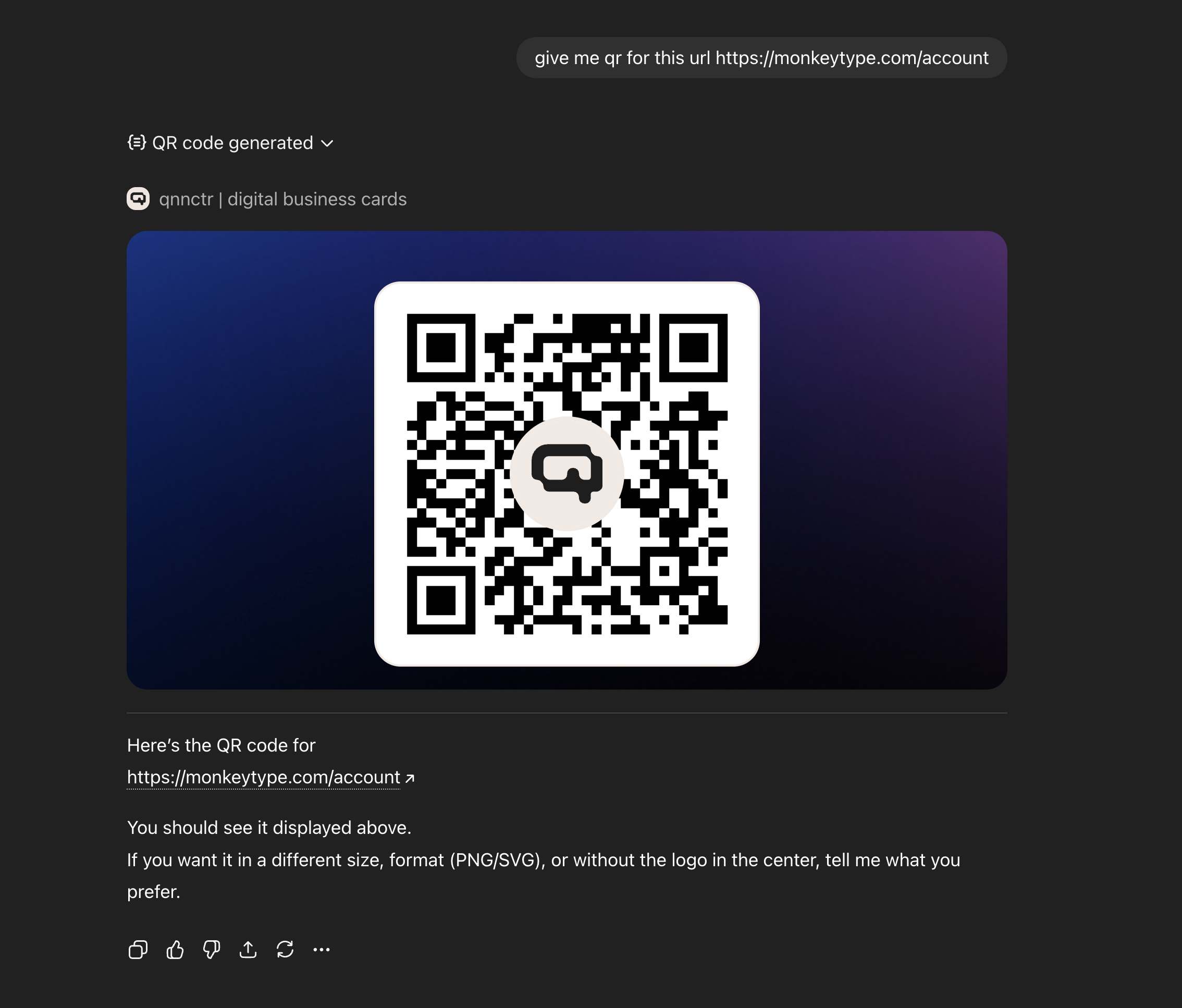
What you get back: public_url and qr_url (PNG), plus a widget preview showing the QR.
Tool #3 — generate_qr_code_for_url (QR for any URL)
When to use: when you need a QR for any user-provided link (landing page, form, social profile, an existing public_url, etc.) — without creating a card.
What to send: url (recommended: https).
Example input:
{
  "url": "https://qnnctr.app"
}
What you get back: qr_url (PNG). The “Open” button in the widget appears only if the URL looks safe.
Mini flows (how it looks to the user)
- Create a card → get a link. The GPT App collects name + contacts → calls
create_business_card→ returnspublic_urlto share. - Create a card → show a QR at a meeting. First
create_business_card→ thengenerate_qr_codewithqr_token→ show the QR from your screen. - QR for any URL (no card). Need a QR to a website/form → call
generate_qr_code_for_url.
How recipients save your contact
They open your public_url page and tap “Save contact” — your details are added to their address book.
How to edit your card
If your card was created via the GPT App, the page may show a sticky “Open in app” prompt — it opens the app where you can quickly update details (add socials, refine bio, update your title, etc.).
Quick checklist before an event
- Make sure your phone/email is up to date
- Verify 1–2 key links (portfolio/landing)
- Keep your bio clear for someone who doesn’t know you yet